
SMART POWER INSTALLATION
One bus. A clear path to each shade.
Plan the hub, connect the three-wire bus and test each location before adding the shade motors.
SYSTEM OVERVIEW
From the supply to the motor.
The Smart Power Kit combines the hub and its 65 W power supply. The bus branches at each shade location; a compatible Tri-Power motor cable connects the bus to the motor.
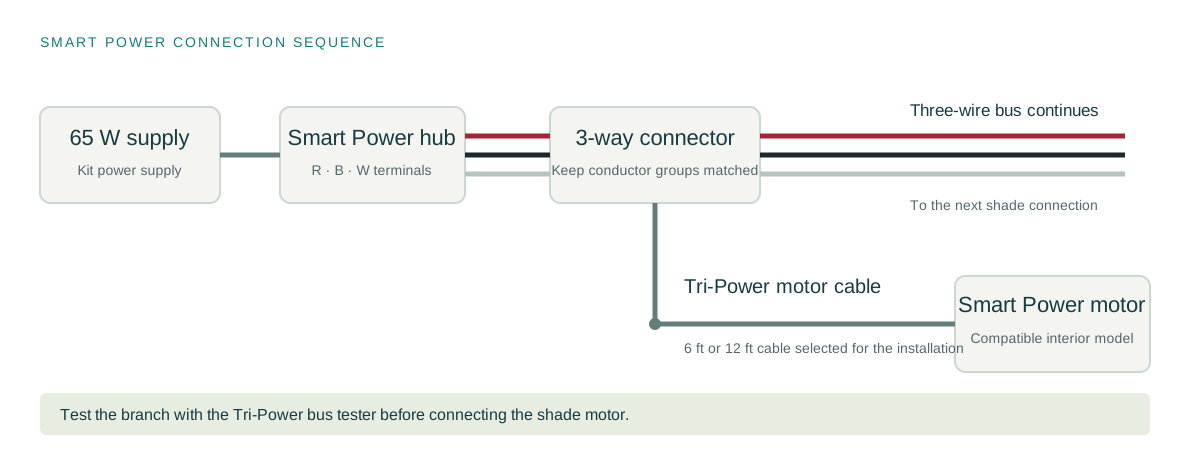
Exterior AC motors use their own AC power connection. They do not connect to the Smart Power Hub. USB-C battery charging and a Smart Power bus connection are different applications; use the cable specified for the connection.
MAKE THE CONNECTION CLEAR
Match red, black and white.
This Tri-Power product illustration shows the three-wire bus connected to the hub terminals marked R, B and W. Keep each conductor in its matching terminal group at the hub, connectors and motor cable.
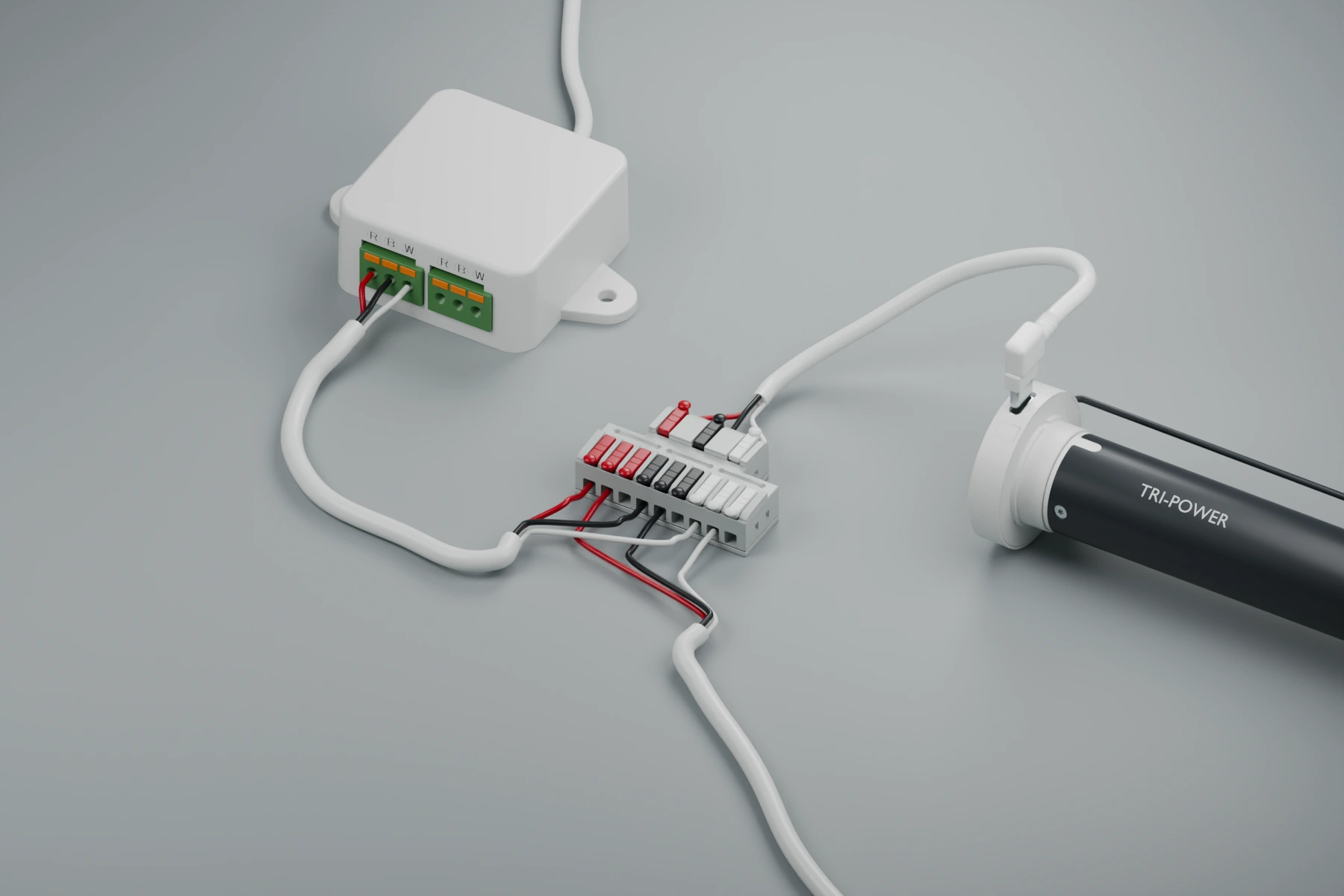
Red to RKeep the red conductor in the red group.
Black to BKeep the black conductor in the black group.
White to WKeep the white conductor in the white group.
Prepare conductors to suit the supplied connector instructions. Seat them fully and keep exposed copper inside the terminal. Confirm the labels on the actual component rather than assigning a conductor by its position in a picture.
INSTALLATION SEQUENCE
Plan. Connect. Test. Then add motors.
Use these stages with the original installation instructions and the instructions for your motor and control models.
Choose the hub location.
Plan access to the supply’s 120 V outlet early. A location toward the middle of the installation can reduce wire runs. The published instructions list up to 20 motors and 500 ft of cumulative 18 AWG wiring per hub bus connection; confirm the final motor count, routing and load for your application with Tri-Power.
Run the bus to each shade location.
The instructions specify 18/3 or 18/4 wire. Straight-line, star, tree or combined routing can be used within the cumulative wiring limit. Leave enough extra cable at each location to prepare and terminate it properly.
Prepare the conductors.
Expose the three conductors needed for the bus. Follow the strip-length marking or instructions for the connector supplied. Avoid damaged conductors and loose strands.
Connect the hub and first connector.
Match red to red, black to black and white to white. Begin with the shade location closest to the hub and connect the first side of its connector so the bus can be checked before it is extended.
Test each branch before connecting motors.
Connect the specified motor cable to the connector and its USB-C end to the Tri-Power bus tester. The published instructions identify green and yellow tester LEDs together as a good bus connection. If that pattern does not appear, check the conductor placement before continuing. Extend and test one location at a time, working away from the hub.
Connect the installed shade motors.
Add one compatible Smart Power motor at a time, beginning nearest the hub. The instructions describe a blue-yellow-blue-yellow motor LED sequence after connection. If the expected blink does not appear, recheck the branch with the bus tester before adding another motor.
Program the controls.
Use the instructions supplied with the exact remote or keypad. The programming library includes pairing, limits, direction, mode and speed videos.
Have the supply outlet and any mains electrical work completed by a qualified installer. Confirm the motor, hub, cable and connector models for the installation before making connections.
THE THREE-WAY CONNECTOR
Branch the bus at the shade.
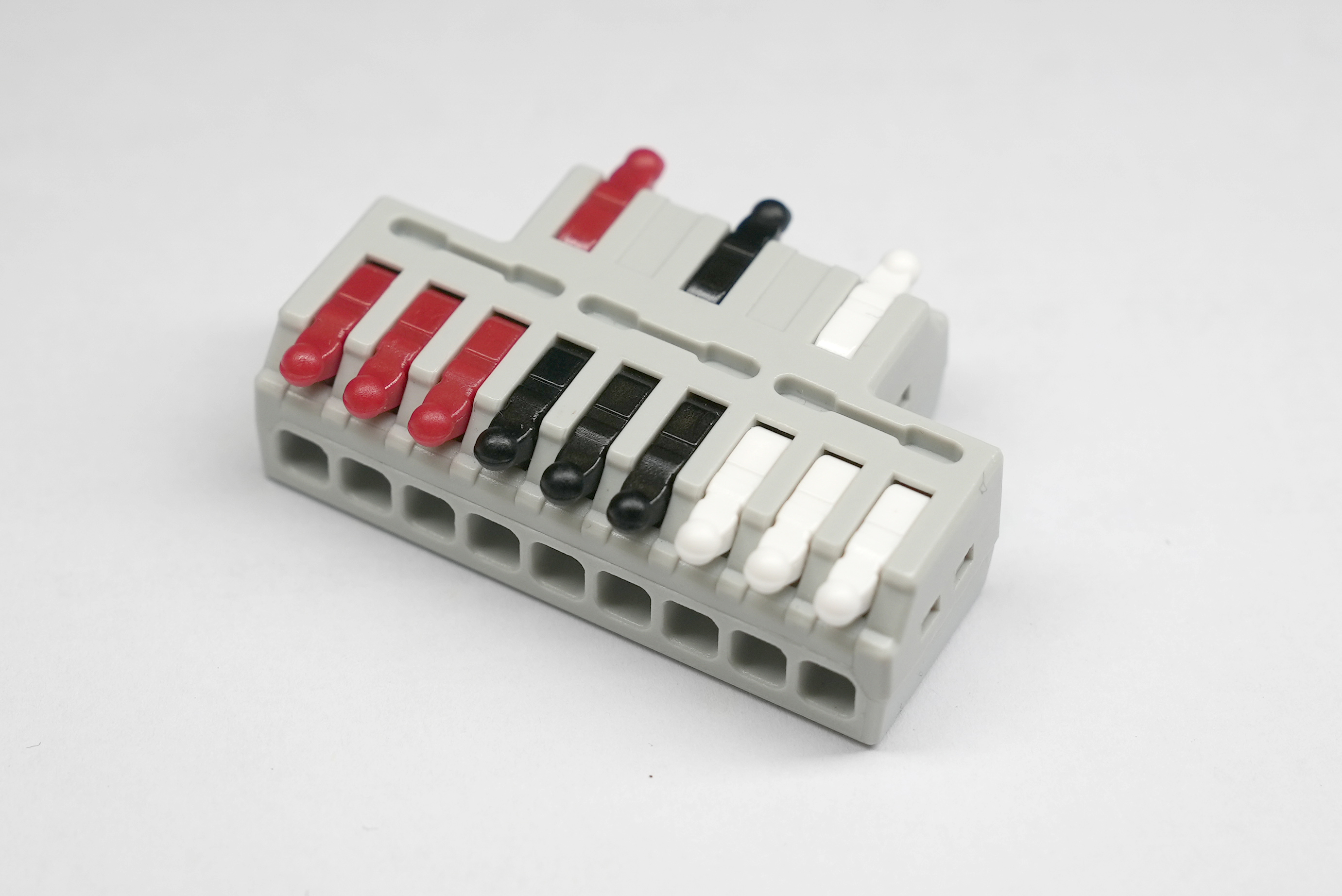
The connector provides grouped connections for the red, black and white conductors. It gives the motor cable a connection point while the bus continues through the installation.
Select it with the genuine Tri-Power Smart Power motor cable and test the completed branch. Confirm the connector’s supplied instructions for wire preparation and termination.
Bring the model details. We’ll help with the layout.
Send the shade locations, intended motor models, wire routes and component labels. Tri-Power can help you match the instructions and review the application.